Barcode Basics
PNG vs SVG vs EPS vs PDF: Which Barcode and QR File Format for Print?
- barcode printing
- file formats
- SVG
- PNG
- EPS
- QR codes
Table of Contents
- The Short Answer
- PNG vs SVG vs EPS vs PDF at a Glance
- Vector vs Raster: The Difference That Matters
- Each Format Explained
- Resolution and DPI for Raster Barcodes
- Color and Ink for Printed Barcodes
- Which Format for Which Job
- How to Export the Right File
- Common Mistakes
- Frequently Asked Questions
- Final Thoughts
- Print References
The file format matters because a barcode's narrow bars and spaces carry its data. A slightly soft logo may still look fine; an uneven barcode can stop scanning. Use a vector file when the design may be resized or sent to a professional printer. Use a raster image such as PNG when it is made for the final size and printer.
The Short Answer
- SVG: a strong all-round vector choice for designers and artwork that may be resized.
- PDF: a useful print-ready container, provided the barcode inside is vector when vector output is required.
- EPS: a legacy vector format to supply when a printer or prepress workflow specifically requests it.
- PNG: a lossless raster choice for screens, documents, and in-house labels printed at the intended size.
Ask the printer what it accepts before finalizing a packaging or production file. A file extension alone does not tell you whether the barcode itself is vector.
PNG vs SVG vs EPS vs PDF at a Glance
| Format | Image type | Best suited to | Main thing to check |
|---|---|---|---|
| PNG | Raster pixels | Web, documents, thermal and office label printing | Resolution and final print size |
| SVG | Vector shapes | Packaging artwork and editable design files | Fonts, scaling, and app compatibility |
| EPS | Vector shapes | Legacy prepress workflows that request it | Printer compatibility and preserved paths |
| Container: vector, raster, or both | Sharing or sending a finished page to print | Whether the barcode inside is vector or raster |
Vector vs Raster: The Difference That Matters
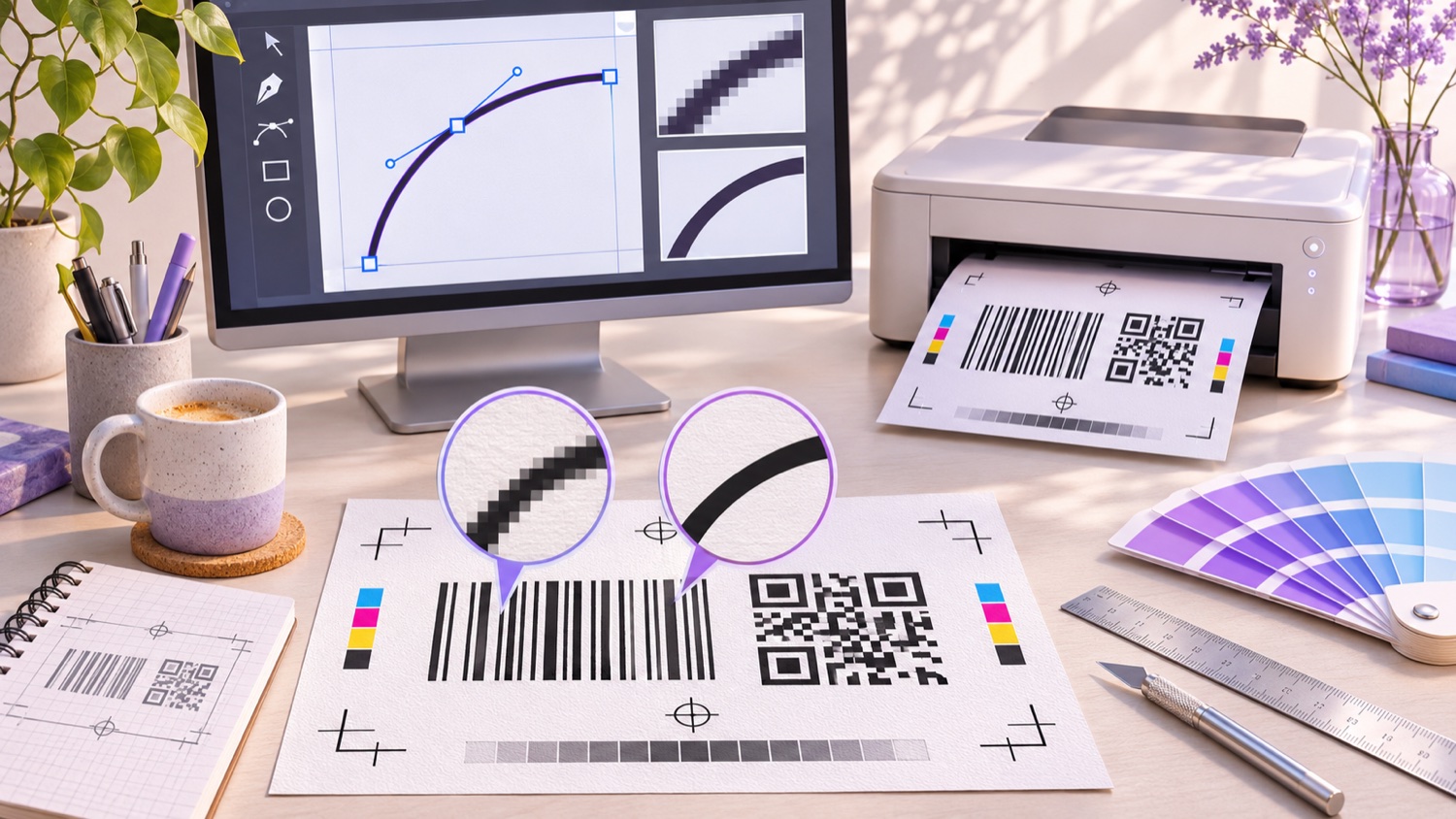
Raster images such as PNG store a grid of pixels. Enlarging a small raster image makes those pixels larger and can soften or stair-step the edges. Shrinking can also merge adjacent bars or modules.
Vector formats such as SVG and EPS store shapes and dimensions. The printer or design software can render those shapes at the output device's resolution, which makes vector artwork a reliable starting point when the barcode will be resized.
Barcode readers compare the relative width of bars and spaces. If resizing changes narrow elements unevenly, or if a print driver scales the image to fit, a symbol that looked correct on screen may become difficult to decode. A vector file helps, but it does not remove the need to meet the symbol's dimensions and print-quality requirements.
Each Format Explained
PNG: practical raster artwork
PNG is lossless and keeps hard edges better than JPG. It works for web pages, product listings, documents, and in-house labels when it is generated at the final print size. Avoid enlarging a small PNG or repeatedly resaving it at a different size.
SVG: flexible vector artwork
SVG stores the barcode as vector paths and is supported by browsers and common design tools. It is a good handoff format when the artwork will be placed into packaging, a book cover, poster, or other layout. If human-readable digits are stored as live text, ask the designer to embed or outline the font as the receiving workflow requires.
EPS: use when requested
EPS remains in some commercial printing and packaging workflows, but it is less convenient to preview in everyday apps. When a printer requests EPS, export it from a vector source using a compatible design tool and check the result with the prepress team.
PDF: inspect what is inside
PDF can contain vector shapes, raster images, or both. A PDF page with a pasted PNG is still a raster barcode; placing it inside a PDF does not convert the pixels into vector paths. Zoom in substantially and check the bars. Clean edges at high zoom are a useful clue, though a printer's preflight tools give a more reliable answer.
On New Age Apps, barcode and QR previews are rendered as PNG images, and the PDF print option places that raster artwork on a page. Treat that PDF as a convenient page for printing at its intended size, not as a scalable vector master. For true vector output, use a workflow that exports vector paths.
Resolution and DPI for Raster Barcodes
DPI describes the number of printer dots per inch. Thermal label printers are commonly available at 203 or 300 dpi; for example, Zebra's ZD500 guide lists both resolutions for different models. The printer's dot pitch, the symbology, the barcode's X-dimension, and the scanner all affect the final result.
For raster artwork, start with the intended physical size and target printer, then make a sample. Avoid browser or driver options such as “fit to page” if they rescale the code. Use the printer's recommended label software and settings when available. Higher DPI by itself does not guarantee a readable symbol if the bars are too small, blurred, or distorted.
There is no single minimum size that works for every QR code or barcode. The amount of encoded data, printing process, material, viewing distance, and scanner determine the practical minimum. Follow the symbol specification and test the real label.
Color and Ink for Printed Barcodes
Dark bars or modules on a light background give scanners strong contrast. GS1's barcode implementation guide identifies black bars on white as the optimum combination and advises using a single line color for bars. If the print job uses CMYK, confirm the black build with the print provider; registration errors between color plates can soften edges.
Some colors that look dark to a person may not provide enough contrast to a particular scanner. Metallic or reflective finishes can also affect the reading. Preserve the required quiet zone, avoid decorative elements close to the symbol, and test any nonstandard color on the actual substrate.
Which Format for Which Job
| Job | Starting format | Why |
|---|---|---|
| Packaging design or book cover | SVG, or EPS if requested | Can be placed and scaled as vector artwork |
| Commercial printer handoff | PDF with vector barcode | Convenient finished layout with scalable symbol |
| Thermal label printer | Printer-native artwork or PNG at final size | Can be prepared for the specific device and label stock |
| Office laser or inkjet labels | PNG at final size or vector artwork | Choose based on the document and print workflow |
| Website, email, or product page | PNG or SVG | Use the format best supported by the destination |
| Poster or large sign | SVG or vector PDF | Reduces risk of blur when enlarged |
| Printer specifically requests EPS | EPS from a vector source | Matches the requested prepress workflow |
How to Export the Right File
- Ask where the barcode is going: screen, document, in-house label printer, packaging layout, or commercial printer.
- Confirm the exact symbology, data, printed dimensions, and quiet zone.
- Choose a vector export if the artwork will be resized or used in professional packaging. Choose PNG for a known-size raster workflow.
- If a printer requests EPS or PDF, verify that the barcode inside remains vector when that is required.
- Check the exported file at high zoom and ensure digits, quiet zones, and surrounding layout are intact.
- Print a proof at the real size and scan it with the device used in the real workflow.
Common Mistakes
- Stretching a small PNG to fill a poster instead of regenerating it at the needed size.
- Assuming every PDF contains vector artwork.
- Using a JPG whose compression has softened the bar or module edges.
- Letting a print driver silently scale a label to fit the page.
- Using color or ink choices that reduce contrast or introduce registration issues.
- Converting a raster image to SVG and assuming it is now vector.
- Skipping the test print on the actual label stock or packaging material.
Frequently Asked Questions
What is the best file format for printing barcodes?
Use a true vector format, such as SVG or a vector PDF, when artwork will be resized or sent through a professional print workflow. A PNG can work well for in-house labels when it is created at the final physical size and suitable resolution. Confirm the printer's requirements.
Is SVG or PNG better for barcodes?
SVG stays sharp when resized because it stores shapes as vectors. PNG stores pixels and is useful for screens, documents, and label printing at a known size. A PNG cannot be made into a crisp vector simply by saving it as SVG.
Do printers still need EPS files?
Some prepress workflows still request EPS, although many modern workflows accept SVG or PDF. Ask the print provider before converting artwork. If EPS is required, export it from a vector source and verify the bars remain vector shapes.
What DPI should a barcode PNG use?
Match the file to the printer and the final printed size. Thermal label printers commonly use 203 or 300 dpi, but the correct barcode dimensions also depend on the symbology, scanner, label stock, and required X-dimension. Test a sample instead of relying on one universal DPI value.
Is a barcode in a PDF always vector?
No. PDF is a container that can hold vector paths, raster images, or both. Zoom in closely: vector bars retain clean edges while a raster image eventually shows pixels. Confirm the export with the printer when it matters.
Can I use JPG for a barcode?
PNG is safer for raster barcodes because it preserves sharp edges without lossy compression artifacts. If you only have a JPG, return to the original data and regenerate the symbol rather than enlarging or re-saving the JPG.
Do QR codes need vector files for print?
The same print principle applies: vector QR modules remain crisp at different sizes. A PNG can work if it is made at the final size and resolution, but do not enlarge a small raster QR code for a sign or package.
Final Thoughts
Choose the file around the print destination. Vector artwork is the safer master when a design will be resized; PNG works when it is created at the final size and handled without scaling. A PDF can contain either type, so inspect the barcode inside it.
The Barcode Generator and QR Code Generator create raster artwork and a print PDF for the generated code. If your print provider requires scalable vector paths, prepare the artwork in a vector workflow and verify the final proof.
Official Help and References
Before production, use your printer's current artwork specifications and the applicable symbology rules. GS1's barcode implementation guide explains barcode colors and quiet zones; its General Specifications provide the detailed requirements for GS1 symbols.
Enjoyed this post?
Share it with your network