Barcode Basics
How to Create Multiple QR Codes at Once for Products, Events, and Marketing
- bulk QR codes
- QR code generator
- event tickets
- marketing QR codes
- static vs dynamic QR
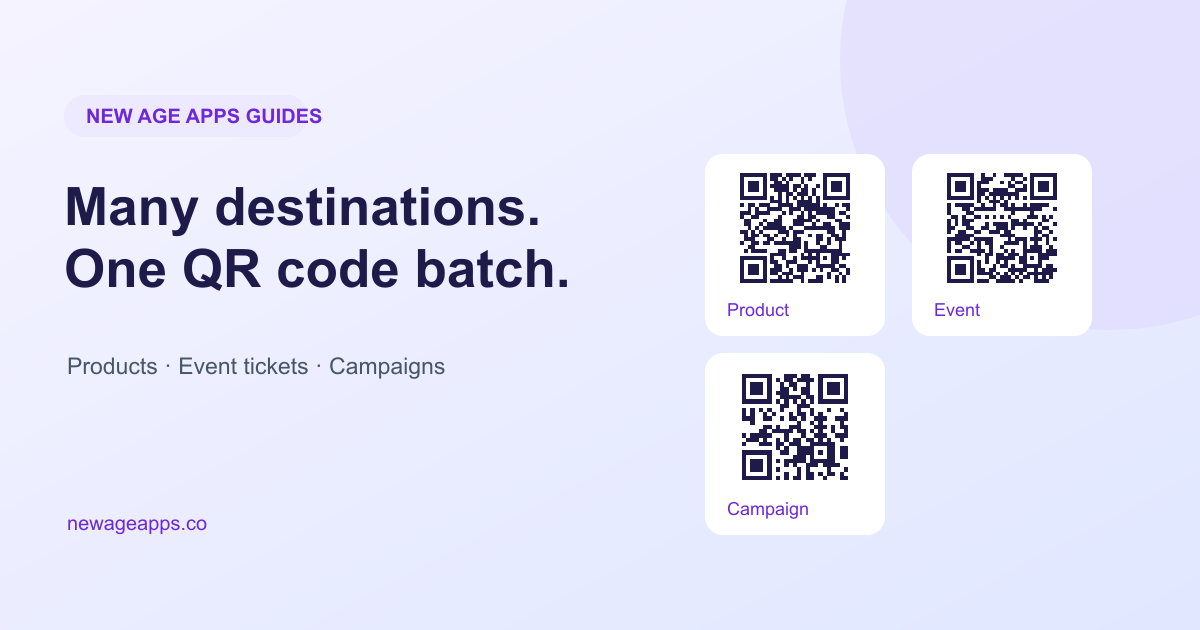
A bulk QR batch creates a separate code from each row of content. For products, events, and marketing, each row usually points to a different destination. Here is how to prepare those values, generate the batch in New Age Apps, and check that the codes lead to the right places.
Table of Contents
- What Makes Bulk QR Different From Bulk Barcodes
- Products: A Unique Code Per SKU
- Events: A Unique Code Per Ticket or Attendee
- Marketing: A Unique Code Per Channel or Campaign
- Prepping Your Data
- Step-by-Step: Generating the Batch
- Static vs. Dynamic QR Codes
- Common Mistakes That Cause Scan Problems
- Frequently Asked Questions
- Final Thoughts
What Makes Bulk QR Different From Bulk Barcodes
With a bulk batch of UPC or EAN barcodes, every code is doing the same job: identifying a different product by number. Bulk QR generation is usually solving a different problem — every code shares one visual design, but each one encodes its own destination, whether that's a unique URL, a contact card, or a short piece of text. A Bulk Barcode Generator that supports QR handles this the same way: one design, applied across a list where each row supplies a different value.
Products: A Unique Code Per SKU
Use a product-specific link for each warranty registration form, instructional video, authenticity workflow, or product page. Keep a master spreadsheet mapping each link to its SKU or product name, then copy only the destination column into the generator. Each line should contain the complete URL to encode; the current bulk input does not import a separate label column.
Events: A Unique Code Per Ticket or Attendee
Giving every attendee their own code, instead of printing one shared code for the whole event, closes an obvious loophole: a screenshot of a shared code can be used by anyone, while a code unique to one ticket at least makes a duplicate detectable. Worth being clear about what the generator does and doesn't do here: generating a batch of unique codes is the easy part. Actually catching a duplicate at the door requires a check-in process that checks each scanned code against a list of codes already used — that's a separate system layered on top of the codes themselves, not something the generator provides automatically.
Marketing: A Unique Code Per Channel or Campaign
For flyers, posters, packaging inserts, or ads running in different locations or channels, giving each placement its own QR code, each pointing to its own tagged URL (a UTM-tagged link, for example), lets your existing analytics tool tell you which physical placement is actually driving traffic. The QR code itself doesn't need to do anything special here — the tracking comes from the URL it points to, not the code.
Prepping Your Data
Prepare one complete URL or short text value per line. If your list is in Excel or a CSV file, copy the value column and paste it into bulk mode; do not include a header row, labels, or extra columns. Check for accidental duplicate values and confirm that the links work. The generator applies a content-length limit, so keep each destination concise.
Step-by-Step: Generating the Batch
- Build your list with one destination URL or text value per line. Keep any SKU or label mapping in your spreadsheet rather than pasting extra columns.
- Double-check for accidental duplicate rows and broken or placeholder links before uploading.
- Open the Bulk Barcode Generator, select QR Code from the Barcode Type menu, and enable Generate one barcode per line. Set the colors once for the batch.
- Paste your values and generate the batch. Sign in for bulk downloads and check the current plan and batch allowance before starting a large run.
- Test-scan a sample of finished codes and confirm that each opens its intended destination before printing or publishing the full set.
- Download the available PNG output or the batch ZIP of PNG images. For print, keep the images sharp at the final size and test a sample; wrapping a PNG in a PDF does not make it vector artwork.
Static vs. Dynamic QR Codes
A static QR code encodes its content directly. A redirect-based QR code encodes a service URL that resolves to saved content, which can support scan analytics. In New Age Apps, signed-in bulk QR generation uses tracked redirect links; guest previews encode the supplied values directly. Tracked codes depend on the saved records and the redirect service. Test the saved result before printing and confirm the available editing workflow before relying on a destination change after a print run.
Common Mistakes That Cause Scan Problems
- Accidentally leaving several rows pointing to the same URL, which defeats the purpose of a unique-per-code batch.
- Packing too much raw text into the code instead of a short URL — more data means a denser, harder-to-scan pattern.
- Cropping the blank margin or using colors with weak contrast, which makes the finished pattern harder to recognize.
- Skipping a test print before a full run, which is the cheapest point to catch a sizing or contrast problem.
Frequently Asked Questions
Can each QR code in a bulk batch point to a different link?
Yes, that's the entire point of bulk QR generation as distinct from bulk barcode generation. Every code in the batch shares the same visual design, but each one is generated from its own row of data, so code #1 can point to product-page-A while code #500 points to product-page-B. If every code in your batch needs the same content, you don't need a bulk QR workflow at all — just print copies of one code.
What's the difference between a static and dynamic QR code?
A static QR code stores its content directly in the printed pattern. A redirect-based code stores an intermediary URL that resolves to a destination. New Age Apps uses tracked redirect links for signed-in QR generation and directly encodes guest previews. Do not assume a printed tracked code will keep working after its saved record is deleted or that every workflow lets you change its destination.
Can I add my logo to a bulk batch of QR codes?
The current New Age Apps bulk generator applies colors across the batch but does not provide a logo upload or frame selector. If you add a logo in an external design tool, you are covering part of the pattern; test the finished artwork with several phones before printing.
How much text can a QR code hold before it gets hard to scan?
Capacity depends on the QR version, content, and error correction, and the app also enforces a content-length limit. More directly encoded data generally produces a denser pattern. Keep links concise, avoid pasting whole paragraphs when a webpage would do, and test at the size and scan distance you intend to use.
How do bulk QR codes help prevent duplicate or fake event tickets?
Bulk QR generation makes it possible to give every ticket a genuinely unique code instead of printing the same code for every attendee — that part alone closes an obvious loophole. Actually catching a duplicate at the door depends on your check-in process, though: something needs to check each unique code against a list of already-scanned codes as people arrive. The QR generator's job is producing unique codes; validating them at the door is a separate system layered on top.
Can I track which QR code was scanned in a marketing campaign?
Yes. New Age Apps creates tracked redirect links for signed-in QR generation, with scan events used by the dashboard analytics. You can also give each placement its own UTM-tagged destination URL to compare traffic in your website analytics. Guest previews encode their supplied content directly. Test the saved, exported codes rather than treating an unsaved preview as the campaign’s final asset.
What file format should I export bulk QR codes in for a print flyer vs. a product page?
The current bulk workflow downloads PNG images, including a ZIP for the batch. Use PNG at the intended size for a digital page. For a flyer or label, avoid enlarging a low-resolution image, keep the blank margin, and test a print sample. A PDF containing those PNGs is still raster-based; use a confirmed vector export workflow if your printer needs scalable artwork.
Do I need a unique QR code for every single product, or can some share one?
It depends on what the code is doing. If it links to something product-specific — a warranty registration form, a how-to video for that exact model, an individual listing page — each product needs its own code. If every unit is pointing to the same general resource, like a shared support page or your homepage, one shared code works fine and there's no need for a bulk batch at all.
Final Thoughts
Bulk QR generation comes down to the same fundamentals as any bulk barcode batch — clean input data and a quick test before committing to a full run — with one extra thing to get right: making sure every code is actually pointing somewhere different on purpose. Try it with the Bulk Barcode Generator, or start with a single QR Code Generator if you're just testing the design before scaling up to a full batch.
QR print reference
For guidance on the clear margin and printed module size, see DENSO WAVE’s QR code margin guidance and module size guidance.
Enjoyed this post?
Share it with your network