Barcode Basics
How to Generate Hundreds of Barcodes at Once: A Complete Guide to Bulk Barcode Creation
- bulk barcode generator
- batch barcodes
- CSV preparation
- barcode workflows
- label printing
Generating barcodes one at a time works fine until you need fifty of them. Here's how bulk generation actually works, how to prep your data so the batch runs clean the first time, and how to print and automate it once you're doing this regularly.
Table of Contents
- What Bulk Barcode Generation Actually Means
- When You Actually Need It
- Prepping Your Data Before You Start
- Step-by-Step: Generating a Bulk Batch
- Choosing a Format for the Batch
- Common Mistakes That Ruin a Batch
- How Big Is Too Big?
- Printing Hundreds of Labels
- Automating It for Next Time
- Frequently Asked Questions
- Final Thoughts
What Bulk Barcode Generation Actually Means
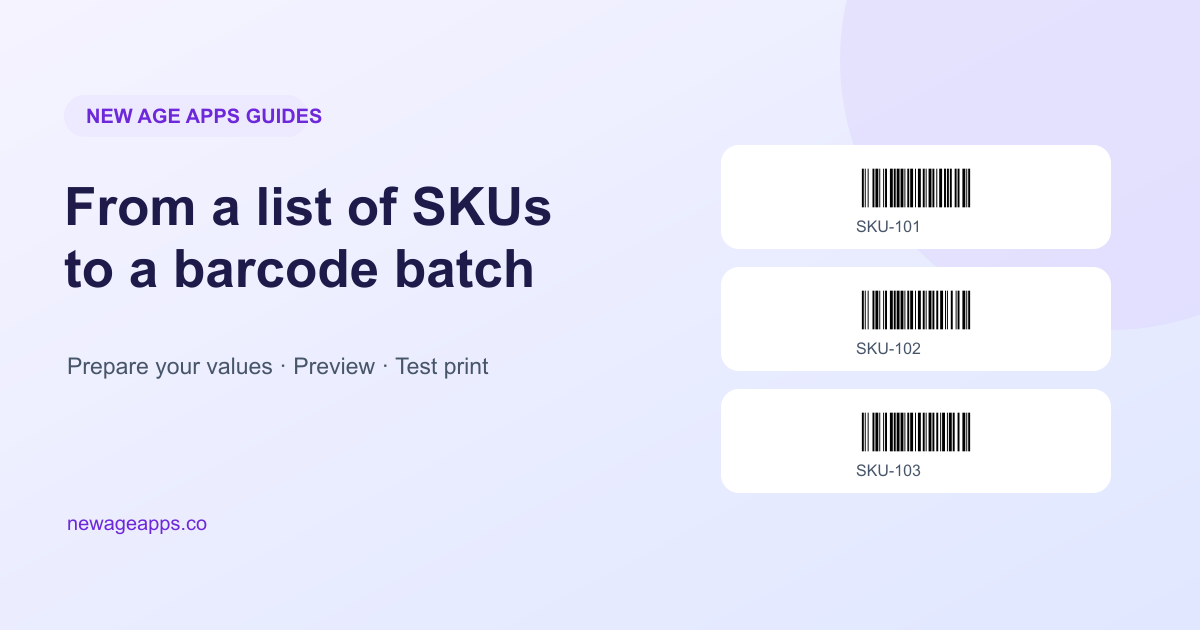
Bulk barcode generation turns a list of product numbers, SKUs, serial numbers, or tracking IDs into a matching set of barcode images in one pass. New Age Apps supports pasted values in its Bulk Barcode Generator: one value per line, with one format selected for the batch. Prepare the list in a spreadsheet or CSV first, then copy the value column into the tool.
When You Actually Need It
If you're generating fewer than a handful of barcodes, doing it one at a time is simpler than setting up a batch. The math flips fast, though: once you're past roughly fifty codes, or you find yourself repeating the same generate-download-rename cycle for more than about fifteen minutes, a bulk workflow saves real time and removes an entire category of copy-paste mistakes. It's especially worth it for a new product catalog launch, a fresh inventory count, an Amazon FBA shipment, or any warehouse relabeling project.
Prepping Your Data Before You Start
For the current New Age Apps bulk workflow, paste one scannable value per line. If the data lives in Excel, export or prepare a CSV for your own records and copy just the value column into the tool. Keep headers and product names out of the pasted list. Preserve leading zeros by treating identifiers as text in your spreadsheet.
| Field | How to prepare it |
|---|---|
| Scannable value | Paste one value per line, preserving leading zeros. |
| Product name or SKU mapping | Keep this in your spreadsheet or label layout; do not paste a second column into the bulk input. |
Before uploading, double-check the list for the two problems that cause the most rework later: values that don't match the format's required length (a UPC-A needs exactly 12 digits, an EAN-13 needs 13), and duplicate values sitting in different rows. Both are far easier to fix in a spreadsheet than after a few hundred labels are already printed.
Step-by-Step: Generating a Bulk Batch
- Prepare one scannable value per line. From an Excel or CSV list, copy just the value column, without a header or extra label columns.
- Choose the barcode format that matches your use case (see the comparison below) — bulk batches generate one format at a time.
- Open the Bulk Barcode Generator, enable Generate one barcode per line, and paste your rows.
- Review the generated batch before downloading — scan through for any rows that were flagged or look visually off.
- Download individual PNG images or a ZIP of the batch. Use Save as PDF or Print where those actions are available in the preview; test the resulting layout before a full print run.
- Print a small test sheet first if this is a large or recurring batch, and scan a few labels before committing to the full run.
Choosing a Format for the Batch
The right format depends on where the barcode is headed, not personal preference:
| Format | Best for |
|---|---|
| UPC-A / EAN-13 | Retail products sold in stores or on major marketplaces |
| Code 128 | Shipping labels, warehouse and logistics tracking |
| ITF-14 | Case- or carton-level packaging, not individual units |
| QR Code | Links, event tickets, marketing assets, anything beyond a short numeric code |
| Pharmacode | Pharmaceutical packaging where the format is industry-specified |
Common Mistakes That Ruin a Batch
- Uploading a list with the wrong digit count for the format — the single most common cause of a rejected or invalid batch.
- Not checking for duplicate values before generating — two products sharing one barcode breaks inventory tracking in ways that are hard to trace later.
- Skipping a small test run before printing hundreds of labels — a labeling or sizing issue is far cheaper to catch on five labels than five hundred.
- Ignoring the required quiet zone (blank margin) around each barcode when designing the label layout, which causes scan failures regardless of how clean the barcode data was.
How Big Is Too Big?
The current bulk interface allows up to 500 values per batch for eligible paid or trial users, with smaller limits for guests, signed-in free users, and Basic users outside a trial. Server-side generation allowances also apply. Check the allowance shown in the tool and Pricing, then split a larger catalog into batches within your limit. Smaller batches also make a problem row easier to find.
Printing Hundreds of Labels
For a few hundred labels, an office printer and adhesive label sheets can work well. Download the PNG images and place them into a layout that matches your label sheet, or use the available PDF/Print actions as a starting point. Confirm the sheet dimensions, scale, quiet zones, and scan quality on a small test print. The app does not offer a dedicated Avery template selector, and a PDF containing PNG images is not a vector export.
Automating It for Next Time
For recurring batches, start with a consistent spreadsheet export and keep the product-to-code mapping in your inventory system. New Age Apps’ API & Integrations documentation describes how to discuss an integration with support. Before planning a Shopify, WooCommerce, Magento, Zapier, or custom API workflow, ask support to confirm the available integration path, authentication, limits, and expected volume.
Frequently Asked Questions
What file format should my product list be in for bulk barcode generation?
For the current New Age Apps bulk input, paste a plain list with one value per line. Prepare that list in Excel or a CSV if you prefer, then copy only the code column. Do not paste a header or a second label column. Treat numeric identifiers as text so leading zeros survive the spreadsheet step.
Is there a limit to how many barcodes I can generate at once?
Yes. The current bulk interface supports up to 500 values per batch for eligible paid or trial users. Guests, signed-in free users, and Basic users outside a trial have smaller limits, and server-side generation allowances apply as well. Check Pricing and the allowance shown in the tool, then split a larger job into batches that fit your plan.
Can I generate different barcode types in the same batch?
Most bulk tools, including New Age Apps, generate one format per batch, since each format has different data requirements (a UPC-A needs 12 digits, an EAN-13 needs 13, a QR code can hold arbitrary text). If you need multiple formats, run separate batches, one per format — it's a small amount of extra setup that avoids a batch full of rejected rows.
What happens if my CSV has a duplicate or invalid value?
The generator validates each value against the chosen format and reports invalid rows so you can correct them before generating a batch. Duplicate values may still be valid inputs, so check them in your spreadsheet first. Also check for missing leading zeros and unwanted headers or extra columns when preparing a list from CSV.
Can I add custom text under each barcode in a bulk batch?
The current bulk input uses each line as the value to encode; it does not import an independent second column of product names. The Show Value setting displays the encoded value where the selected barcode format supports it. To add a different product name, keep your product-to-code mapping in a spreadsheet and add that text in your label layout.
What's the best way to print hundreds of barcode labels?
Start with a small test sheet. Match your label layout to the actual sheet or printer dimensions, preserve the quiet zones, and scan several printed codes. Use an office printer and label sheets for occasional runs; for recurring work, evaluate a label printer that matches your label material, resolution, and volume. New Age Apps does not select a label-sheet template automatically.
Can bulk barcode generation be automated so I don't have to do it manually every time?
A recurring workflow needs a confirmed connection between your product data and a barcode service. New Age Apps’ API & Integrations page directs you to support to discuss the available integration path. Share your platform, formats, authentication needs, and expected volume before assuming there is a ready-made Shopify or Zapier connector.
Do bulk-generated barcodes need to be verified before I use them?
Yes. Format validation checks the input, but it cannot confirm the final printer output. Scan a sample with the phones or scanners you will actually use and check the decoded values against your source list. Repeat that check after changing export size, label layout, or printer settings.
Final Thoughts
Bulk barcode generation comes down to three things: clean input data, the right format for the job, and a quick test before you commit to a full print run. Get those right and generating five hundred barcodes takes about as much effort as generating five. Try it yourself with the Bulk Barcode Generator, or see the full list of supported formats and export options on the Features page.
Enjoyed this post?
Share it with your network