Barcode Basics
How to Scan a Barcode or QR Code Online (Phone, Webcam or Image Upload)
- barcode scanner
- QR code scanner
- scan online
- Google Lens
- iPhone
- QR safety
Table of Contents
- The Short Answer
- Which Method Reads Which Codes
- How to Scan With an iPhone
- How to Scan With an Android Phone
- When You Need a Scanner App
- How to Scan With a Webcam in Your Browser
- How to Scan a Barcode From an Image or Screenshot
- Tips for a Successful Scan
- How to Scan QR Codes Safely
- Test a Barcode Before Printing
- Common Mistakes
- Frequently Asked Questions
- Final Thoughts
- Official Help and References
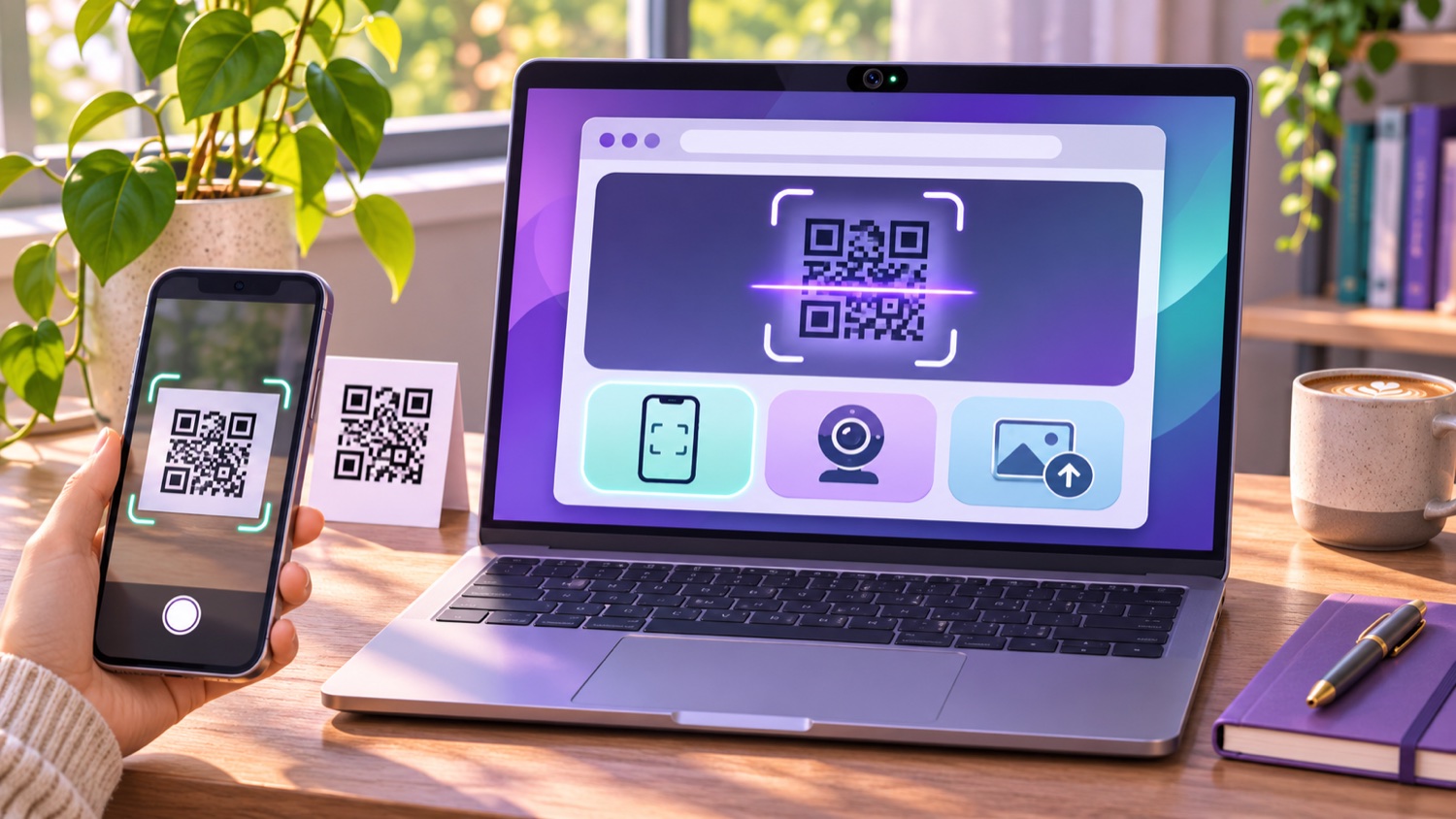
You can scan most everyday codes without buying a dedicated hardware scanner. Use a phone camera for QR codes, a scanning app for formats the built-in camera does not recognize, or an online scanner on a computer when it supports your code type. A website may use a webcam or accept an image upload.
The Short Answer
- Phone camera: fastest for QR codes and links.
- Google Lens or a scanner app: useful for product barcodes and less common formats, depending on the app.
- Webcam scanner: useful for a printed code at a computer when the website and webcam can focus on it.
- Image upload: useful when the code is already in a photo, PDF, or screenshot.
Format support differs. A QR code may open directly in a phone camera, while UPC, EAN, Code 128, Data Matrix, and PDF417 may require a tool that specifically supports them.
Which Method Reads Which Codes
| Method | QR Code | UPC / EAN | Code 128 / Data Matrix / PDF417 | Best for |
|---|---|---|---|---|
| iPhone Camera or Code Scanner | Yes | Not reliably | Not reliably | Opening QR links |
| Android camera or Google Lens | Yes | Often through Lens | Varies by format and app | QR and product lookup |
| Dedicated scanner app | Yes | Usually, if listed | Check the app's supported formats | Repeated scans or non-QR formats |
| Online scanner with webcam | Usually | Usually if listed | Depends on the site | Printed codes at a computer |
| Online scanner with image upload | Usually | Usually if listed | Depends on the site | Photos and screenshots |
“Usually” means the scanner's decoder lists that format; it is not a guarantee for every image or device. Check the tool's format list before relying on it.
How to Scan With an iPhone
With the Camera app
- Open Camera and select Photo mode.
- Hold the phone so the QR code is completely visible in the viewfinder.
- Wait for the link or notification, then check it before opening.
With Code Scanner
Open Control Center and tap Scan Code. If the control is missing, add it from the Control Center controls. Point the camera at the QR code and tap the result. Apple's iPhone QR scanning guide also notes that Code Scanner can use the flashlight in low light.
These built-in tools are intended for QR codes. For UPC, EAN, or other product symbols, use an app that explicitly supports the format.
How to Scan With an Android Phone
Android camera features vary by manufacturer and model. Try the built-in Camera app first; if it does not recognize the code, open Google Lens or a QR scanner from Quick Settings. In Chrome on Android, Google's Lens help explains how to search with a QR code or barcode.
For a saved picture, open it in Google Photos or another photo app that offers Lens recognition. Menu names and features vary, so check the phone maker's help if the steps differ on your device.
When You Need a Scanner App
A dedicated app is useful when you need to read product numbers instead of just look up a product, scan a non-QR symbology, scan many codes in a row, or keep a history of results. Before installing one, check that it lists the needed formats and asks only for permissions that make sense for its features. Camera access is needed for live scanning; contacts access generally is not.
How to Scan With a Webcam in Your Browser
- Choose a reputable online scanner and confirm that it supports your barcode format.
- Open the site over HTTPS and allow camera access when the browser asks.
- Hold the code in front of the webcam. Start several inches away and move slowly until the image is in focus.
- Keep the code steady in even light and read the decoded value before copying or opening it.
Web camera access requires a secure context and user permission in supporting browsers. See MDN's getUserMedia documentation. A scanner site can bundle its own barcode decoder, but its symbology support and browser behavior still vary. Laptop webcams may have fixed focus and struggle with small product codes.
How to Scan a Barcode From an Image or Screenshot
On a computer
- Save the photo, screenshot, or page image with the whole code visible.
- Open an online scanner that supports image upload and the code's format.
- Select the image and review the decoded value.
On a phone
Try the phone's photo app or Google Lens if the code is in a saved image. If you use a website, check its privacy information first. Some tools decode images locally; others send the image to a server.
Crop close enough to make the symbol clear, but keep the complete code and its blank margin. Use the original image rather than a tiny thumbnail, avoid skew, and prefer one code per image.
Tips for a Successful Scan
- Add even light and tilt glossy packaging to reduce reflections.
- Keep the whole code in frame, including its quiet zone.
- Move the camera until the symbol is in focus, then hold it steady for a moment.
- For a 1D barcode, show the full length of the bars instead of aiming at a tiny corner.
- Clean the camera lens and use an uncompressed image when possible.
- If several scanners fail, check print size, contrast, damage, and margins before blaming the device.
How to Scan QR Codes Safely
A QR scan can open a link, but it does not prove that the destination is trustworthy. The FTC warns about harmful links hidden in QR codes, including codes placed over legitimate public codes or sent in unexpected messages.
- Preview the web address and look for misspellings or unfamiliar domains before opening it.
- Do not scan an unexpected code in an email or text that pressures you to act quickly. Contact the organization using a number or website you already know.
- Look for a sticker placed over the original QR code on meters, posters, or table signs.
- Avoid uploading boarding passes, tickets, identification documents, or payment codes to an unknown scanner site.
Test a Barcode Before Printing
- Print one sample at the intended size on the actual label or package material.
- Scan it with the phone or equipment that customers or staff will use.
- Compare the decoded text with the original value character by character, including leading zeroes.
- For a QR code, inspect the destination before opening it.
A screen preview is useful, but it does not account for printer resolution, ink spread, reflective stock, or scan distance. The Barcode Generator and QR Code Generator can prepare codes; a real-size scan checks the final output.
Common Mistakes
- Expecting an iPhone camera to decode every product barcode.
- Holding a code too close to a laptop webcam for it to focus.
- Cropping away the quiet zone in an image or screenshot.
- Uploading a sensitive ticket or ID to a scanner site without checking how it handles images.
- Opening a QR link without checking the address first.
- Testing only on a screen and skipping a scan of the printed sample.
Frequently Asked Questions
Can I scan a barcode without installing an app?
Often, yes. Built-in phone camera apps handle QR codes, and some Android camera or Google Lens tools can recognize product barcodes. On a computer, an online scanner may use a webcam or an image upload. Support varies by code type, device, and website.
Can I scan a barcode on my computer?
Yes. Use an online scanner that supports your code type and either webcam scanning or image upload. Webcam scanning requires camera permission, and the page generally needs to be served securely over HTTPS. A USB scanner can be faster for frequent desk work.
How do I scan a QR code from a screenshot?
Use your phone's photo tools if they recognize QR codes, or upload the screenshot to an online scanner that supports image decoding. Keep the complete symbol and some blank margin around it in the screenshot.
Why will my iPhone not scan a product barcode?
The iPhone camera and Code Scanner are designed for QR codes and may not decode ordinary UPC, EAN, or Code 128 product symbols. Try Google Lens or a dedicated app that lists the symbology you need.
Are online barcode scanners safe?
Check both the image handling and the decoded result. Some sites process images in the browser, while others upload them to a server. Avoid uploading sensitive tickets, boarding passes, or IDs to an unknown site, and preview a web address before opening it.
Can a laptop webcam scan small barcodes?
Sometimes, but fixed-focus or low-resolution webcams can struggle with small symbols. Improve the light, hold the code steady, and move it until it is in focus. If it still fails, try a phone camera or a clear image upload.
What does a number from a UPC or EAN barcode mean?
A retail UPC or EAN symbol encodes a GTIN that identifies a trade item. The product name and price are normally looked up in a separate database. The final digit is a check digit used to detect some data-entry and scanning errors.
How should I test a barcode before printing?
Print a sample at the real size on the real material, then scan it with the equipment customers or staff will use. Confirm every decoded character, including leading zeroes, and open a QR link only after checking that the destination is correct.
Final Thoughts
Match the scanner to the code: phone cameras make QR links quick to open, while product barcodes and less common symbologies may need a dedicated app or a scanner that explicitly supports them. On a computer, webcam and image-upload tools are useful when their format support and privacy practices meet your needs.
If you create a code, include a real-size scan in the print workflow. Generate with the Barcode Generator or QR Code Generator, print a proof, and confirm that the decoded value is exactly right.
Official Help and References
For current device steps, see Apple's iPhone and iPad QR scanning guide and Google's Lens help for Chrome on Android. For webcam permission behavior, read MDN's getUserMedia reference. For QR link safety, see the FTC consumer alert.
Enjoyed this post?
Share it with your network