Barcode Basics
How to Make a QR Code for a PDF, Menu, or Digital Document
- QR code for PDF
- QR code for menu
- digital menu
- document QR code
- Google Drive QR code
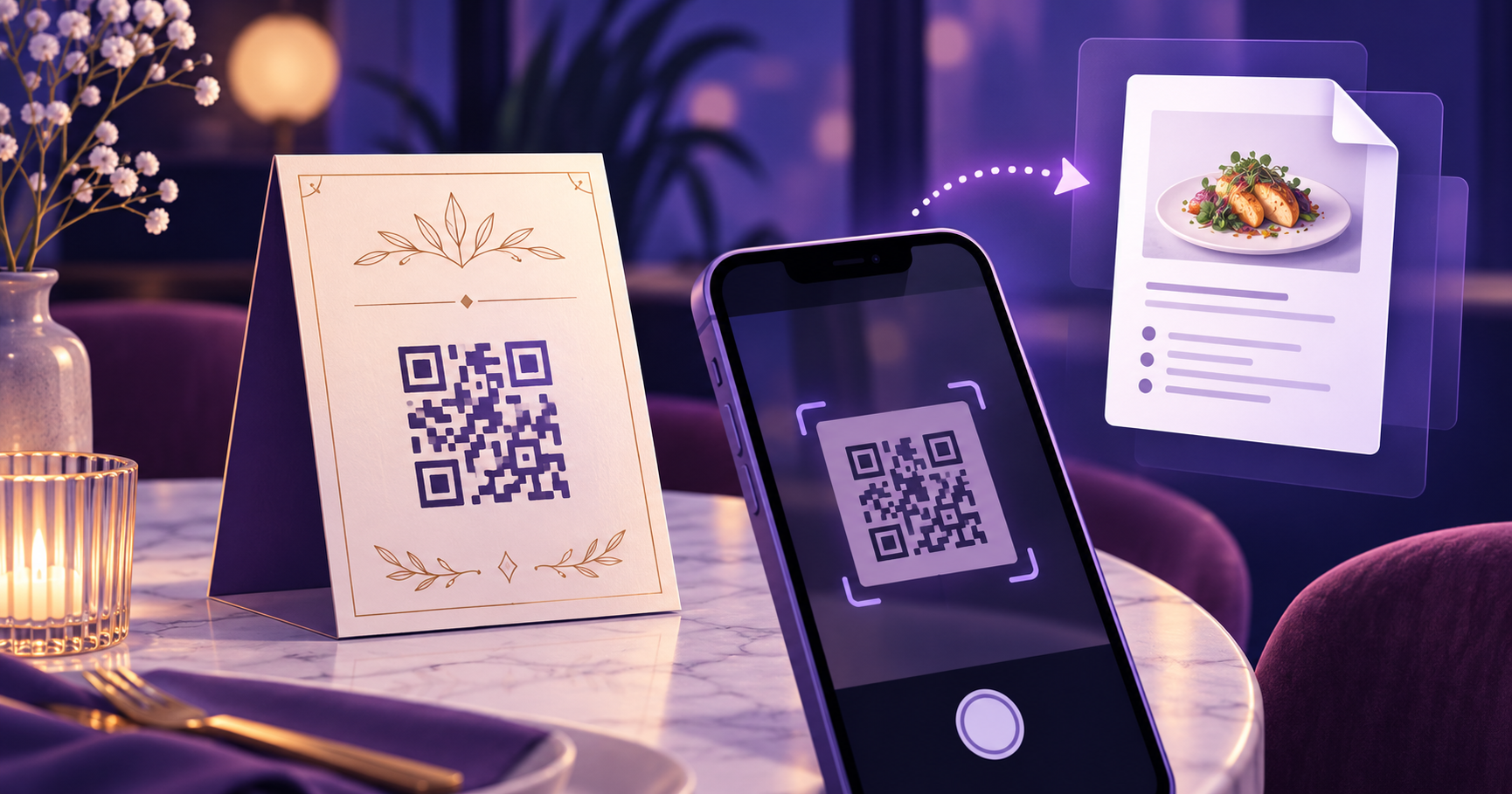
This works a little differently than a QR code for a regular webpage, because the code can't actually hold the document itself. Here's how it really works, where to host the file, and how to make sure it still loads fast and correctly once someone scans it.
Table of Contents
- Why the QR Code Can't Contain the PDF Itself
- Where to Host Your Document
- Step-by-Step: Creating the QR Code
- Making Sure It Opens Correctly on a Phone
- Menu-Specific Tips
- Common Mistakes
- Frequently Asked Questions
- Final Thoughts
Why the QR Code Can't Contain the PDF Itself
A QR code can realistically hold a few thousand characters of data — enough for a URL, a short message, or contact details, but nowhere close to enough for an actual PDF, which is typically hundreds of kilobytes or more even for a short menu. Every QR code you've ever scanned to open a document was actually encoding a web link, and your phone downloaded or opened the file from that link after scanning. Understanding this one fact makes the rest of the process much clearer: the real work here is hosting the file somewhere reliable, not the QR code itself.
Where to Host Your Document
A few solid options, roughly in order of reliability:
- Your own website, if you have one — most reliable, since you fully control uptime and the link.
- Google Drive or Dropbox — free, widely compatible, and the most common choice for a quick setup.
- A document or menu hosting tool, if your business already uses one for other reasons.
Whichever you use, the sharing setting has to allow anyone with the link to view it, not just specific people you've added — a restricted file is the single most common reason a document QR code fails for someone other than its owner.
Step-by-Step: Creating the QR Code
- Upload your PDF or document to your website, Google Drive, or Dropbox.
- Set its sharing permission to "anyone with the link can view."
- Copy that share link and open it yourself in a private/incognito browser window to confirm it actually opens.
- Paste the link into the QR Code Generator and generate the code.
- Test-scan it with your own phone before printing or publishing it anywhere.
Making Sure It Opens Correctly on a Phone
A document that looks fine on a laptop can behave differently on a phone. Two things are worth checking specifically: that the file isn't so large it takes more than a couple of seconds to load on mobile data (compress it if it is), and that it opens as a viewable page rather than forcing an automatic download, which some hosting settings do by default and which feels clunky compared to just viewing it instantly.
Menu-Specific Tips
Restaurants are the most common real-world case for this, and a couple of things matter more here than for a generic document. Keep the file size small, since someone standing at a table on spotty restaurant wifi or cellular data won't wait long for a slow-loading menu. And consider whether a simple mobile-friendly webpage might actually serve guests better than a PDF built for print, since a PDF designed for an 8.5x11 page often requires pinching and zooming on a phone screen in a way a responsive webpage wouldn't.
Common Mistakes
- Leaving the hosted file's sharing permission restricted, so it works for the owner but not for guests.
- Uploading a huge, uncompressed file that takes too long to load on mobile data.
- Replacing the file by uploading a brand-new one instead of updating the existing link, which breaks every QR code already printed.
- Never testing the actual link, not just the QR code, in a private browser window before publishing it.
Frequently Asked Questions
Can a QR code actually hold a PDF file inside it?
No, not a real one. A QR code can hold a few thousand characters at most, while even a short PDF menu is typically tens or hundreds of times larger than that. Every "QR code for a PDF" actually works by encoding a web link to a file hosted somewhere else, and the phone downloads or opens the file from that link after scanning. The code is a pointer, not a container.
Where should I host my PDF so the QR code works for everyone?
Your own website is the most reliable option if you have one, since you control it fully. Google Drive and Dropbox both work well as free alternatives and are widely compatible, as long as the file's sharing setting is "anyone with the link can view" rather than restricted — a private file is the single most common reason this breaks for other people.
Why does my QR code link open a blank page or an error instead of my PDF?
This is almost always a sharing-permission issue, not a problem with the QR code itself. If the file is hosted on Google Drive, Dropbox, or similar, double-check its sharing setting is public or "anyone with the link," not restricted to specific people. Test the link itself in a private/incognito browser window — if it fails there, the QR code was never going to work either, regardless of how it was generated.
Will my restaurant menu QR code still work if I update the PDF later?
Yes, if you update the file at the same hosting link rather than uploading a new file and getting a new one. Google Drive and Dropbox both support replacing a file's contents while keeping its share link identical, which means you can swap in a new seasonal menu without reprinting a single table tent or sticker, as long as you remember to update the existing file rather than creating a fresh upload.
Should I use a PDF or a webpage for a menu QR code?
A simple webpage usually gives a better experience on a phone, since it resizes to fit the screen instead of forcing someone to pinch and zoom around a page designed for print. A PDF is the faster option if you already have a print-ready menu and don't want to rebuild it as a webpage. Either works technically — it's a trade-off between setup effort and how smooth the experience is for the person scanning it.
Do I need to make my Google Drive or Dropbox file "public" for the QR code to work?
You need it set to at least "anyone with the link can view," though that's not the same as fully public or searchable — it just means anyone who has the specific link (which only exists inside your QR code) can open it, not that it's indexed or discoverable by anyone browsing Drive or Dropbox generally.
Why is my PDF slow to load when someone scans the code?
Large file size is the usual cause, especially PDFs exported with high-resolution images baked in. Compressing the PDF before uploading, most design and PDF tools have a built-in "reduce file size" or "optimize for web" export option, often cuts the file down significantly with no visible quality loss and makes a real difference on mobile data.
Can I password-protect a document and still use a QR code for it?
Technically yes, but it adds friction, since the person scanning still has to stop and enter a password before seeing anything. It makes sense for genuinely sensitive documents, but for something meant to be opened quickly and casually, like a restaurant menu, it usually works against the point of using a QR code in the first place.
Final Thoughts
The QR code itself is the easy five-minute part — the real work is making sure the document it points to is hosted somewhere reliable, properly shared, and fast to load on a phone. Get the hosting right first, test the actual link, and the code will just work. Generate yours with the QR Code Generator once your file is uploaded and shared.
Enjoyed this post?
Share it with your network