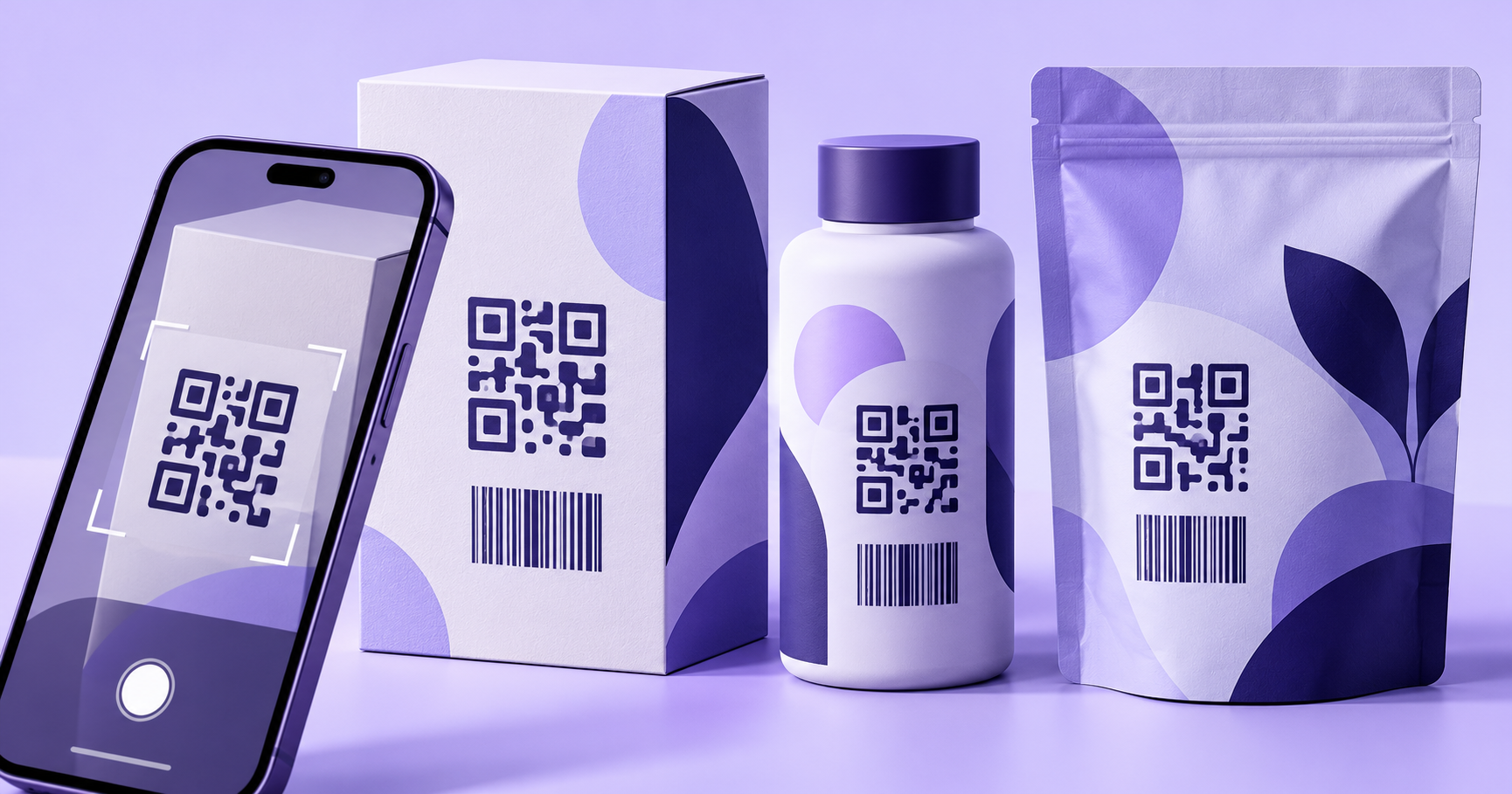
Barcode Basics
How to Create QR Codes for Product Packaging and Labels
- QR code packaging
- product labels
- QR code size
- GS1
- print-ready QR codes
To put a scannable QR code on packaging, decide what it links to, keep the link short and stable, generate a high-contrast code, export it as a vector file (or a high-resolution PNG at final size), print it at least about 2.5 cm (1 in) wide with a clear margin around it, and test a real printed sample on the actual material before the full run.
| Two things to know first 1. A QR code on your packaging doesn't replace the UPC or EAN barcode that retail checkouts read. It adds to it. 2. The New Age Apps QR Code Generator makes standard static codes, which can't be edited after printing. That makes your choice of destination the most important decision on this list. |
|---|
Table of Contents
- What to Put in a Packaging QR Code
- Does a QR Code Replace the Barcode?
- Step-by-Step: Creating the Code
- How Big Should It Be?
- Placement, Surface, and Print Method
- Special Notes for Labels
- Common Mistakes
- Frequently Asked Questions
- Final Thoughts
What to Put in a Packaging QR Code
A good packaging QR code gives the customer something the box can't hold. If you can't finish the sentence "scan this to...", the code probably doesn't belong on the pack yet.
| Scan this to... | Link it to |
|---|---|
| Get set up | A short setup guide or how-to video |
| Register your product | A warranty or registration page |
| Find the manual | A hosted PDF or help page |
| Recycle it properly | Disposal and recycling instructions |
| Order more | A reorder or refill page |
| Learn more | A product page with details, ingredients, or care steps |
Whichever you choose, link to a mobile-friendly page, because almost everyone scanning will be on a phone.
Does a QR Code Replace the Barcode?
No. Retail checkouts still read the UPC or EAN, so keep it. The picture is changing slowly: GS1, the global standards body, runs an initiative called Sunrise 2027 that asks retailers to make their point-of-sale systems capable of scanning 2D barcodes, including QR codes built on the GS1 Digital Link standard, by the end of 2027. During the transition, 2D codes are meant to sit alongside UPC and EAN barcodes, and GS1's guidance says a product carrying a retail 2D code should still carry a linear barcode until point-of-sale support is widespread. Claims that UPCs "disappear in 2027" overstate it. For background on the two code families, see our guide to 1D vs 2D barcodes.
One more distinction matters. A QR code made by pasting any link into a generator is a standard QR code. A GS1 QR code has to follow GS1's Digital Link structure, built around your product's GTIN. If your retail partners ask for GS1-compliant 2D codes, follow GS1's specification and confirm with them before printing. Our post on what a GS1 barcode is and who needs one explains the identifier side.
Step-by-Step: Creating the Code
- Choose the destination page and make sure it works well on a phone.
- Keep the link short and stable, and start it with https://. Use a page on a domain you control, since you can't edit the printed code later.
- Open the QR Code Generator, choose the URL type, and paste your link.
- Keep colors dark on a light background. Brand colors are fine if the contrast stays strong.
- Download the highest-quality file available. Use SVG or PDF for print artwork when you can, and a high-resolution PNG only at its final size.
- Place it in your packaging artwork at the right size, with the margin around it left empty.
- Print a proof on the real material and test it with a few different phones.
The basics are the same as in our guide to creating a QR code for a website or URL, with the print details below added on top.
How Big Should It Be?
Sources vary, so treat these as starting points and test at final size.
| Situation | Starting point |
|---|---|
| Absolute minimum, ideal conditions | About 2 cm (0.8 in): flat, matte, high contrast, short link |
| Typical packaging | About 2.5 cm (1 in) or larger |
| Curved, glossy, flexible, or textured | Add roughly 20% or more, and keep to the flattest area |
| Scanned from farther away | Divide the scanning distance by 10 (10:1 rule) |
Then protect the quiet zone: the empty margin around the code. The QR standard calls for at least four modules (the small squares) on every side, which in practice is roughly 10 to 15 percent of the code's width. Keep text, borders, and your UPC out of that margin. Crowding it is one of the most common reasons a code scans on screen but not in print.
Placement, Surface, and Print Method
- Place the code on a flat, visible area, not across a seam, fold, or sharp curve, and where people can see it without turning the pack.
- Matte surfaces scan more reliably than glossy ones, which cause glare. If the pack is glossy, consider a matte area just for the code, or make the code larger.
- On transparent or translucent packaging, print a solid light-colored block behind the code so the contrast holds.
- Use a vector file or high-resolution art, because enlarging a small raster image blurs the edges a scanner depends on.
- Lower-resolution print methods, such as screen printing, usually need larger codes. Ask your printer for the smallest module size they can hold cleanly.
If a printed code won't scan, our guide to fixing common barcode printing and scanning issues is a good next stop.
Special Notes for Labels
Adhesive labels add a few wrinkles. On small labels, check that the quiet zone fits before you commit to the layout. On round die-cut stickers, keep the code in the flat central area and the margin inside the cut line. And if space is tight, never shrink or remove mandatory label text to fit a QR code. Skip the QR code on that format instead.
Need a unique code for every product? Generate them as a batch with the Bulk Barcode Generator, as covered in our guide to creating multiple QR codes at once.
Common Mistakes
- Linking to a temporary page, then watching the code go stale on shelves.
- Cropping or crowding the quiet zone to save space.
- Making the code too small for the surface, distance, or print method.
- Using low-contrast or decorative colors without testing them.
- Testing only on screen, instead of on the real printed material.
Frequently Asked Questions
Can I put a QR code on my packaging instead of a barcode?
Not for retail checkout. Store scanners still rely on the UPC or EAN barcode, so a QR code on your packaging works as an addition, not a replacement. GS1's Sunrise 2027 initiative asks retailers to make their checkout systems able to read 2D codes by the end of 2027, and during that transition 2D codes are meant to sit alongside UPC and EAN barcodes. For now, keep your retail barcode and use the QR code for everything else you want to share.
What is the minimum size for a QR code on a product package?
Sources commonly cite about 2 cm (0.8 in) as the absolute minimum, and that assumes a clean flat surface, strong contrast, and a short link. For packaging, 2.5 cm (1 in) is a safer starting point. Add roughly 20% or more for curved, glossy, or textured surfaces. You can also use the 10:1 rule: divide the expected scanning distance by ten. Whatever size you choose, test a real printed sample at that exact size. Larger is almost always safer than smaller on packaging.
Why does my QR code scan on screen but not on the printed box?
Usually one of four things: the quiet zone was cropped or crowded by artwork, the contrast is too low, a small low-resolution PNG was scaled up and blurred, or the code is simply too small for the surface. Glare from glossy finishes and curved surfaces make all of these worse. Our guide to why a barcode won't scan covers the shared print and sizing causes. Start by checking the margin, then test the fix on a fresh printed proof, not on screen.
What should a packaging QR code link to?
A mobile-friendly page that gives the customer something the box can't: setup instructions, a manual, a how-to video, warranty registration, recycling details, or a reorder link. Keep the address short, since long links make denser, harder-to-scan codes. Use a page on a domain you control and expect to keep, and include https:// at the start of the link. Avoid pointing at temporary campaign pages when the packaging will stay on shelves for months. A page that loads in a couple of seconds on mobile data is a good target.
Can I print QR codes on curved surfaces like bottles or tubes?
Yes, with care. Curvature distorts the pattern as the camera sees it, so make the code larger, keep it within the flattest section of the surface, and stay away from seams and folds. Matte finishes help because they reduce glare, and tubes, cans, and cups follow the same logic. If the code wraps toward the edge of the item, move it toward the center. Most importantly, test on the actual curved item. A flat paper proof can scan perfectly and still fail once the code wraps around a real bottle.
Do I need a different QR code for every product?
It depends on what the code links to. If each product has its own manual, registration page, or listing, each needs its own code. If every product points to the same support page, one shared code is fine. When you do need many unique codes, generating them as a batch from a spreadsheet saves hours and avoids copy-paste errors, as our guide to creating multiple QR codes at once explains. Either way, record which code goes with which product so nothing gets mixed up on press.
What happens if the link on my packaging changes later?
The code will keep pointing to the old address, because a standard QR code can't be edited after it's printed. The New Age Apps generator creates this kind of code, so plan the destination before the print run. The practical fix is to link to a stable page on your own website and update that page's content over time, rather than linking to something temporary. If a page ever moves, set up a redirect from the old address, and recheck the link before each new print run.
Can a QR code replace required information on a label?
Generally you shouldn't count on it. Many product categories have rules about what must appear on the physical pack, such as warnings, ingredients, or certification marks, and those rules vary by product and region. Treat the QR code as extra information, not a substitute, and never shrink or remove mandatory text to make room for it. If you're unsure what your category requires, check with the relevant regulator or your compliance adviser before finalizing the design. A short conversation up front is cheaper than relabeling.
Final Thoughts
A packaging QR code works when three things line up: a destination that's useful and stable, a design that respects size, contrast, and the quiet zone, and a real-world test before the print run. Get those right and it quietly does its job for the life of the product. Ready to make one? Use the QR Code Generator, or browse the full list of Features for other formats.
Enjoyed this post?
Share it with your network