Barcode Basics
How to Print Barcode Labels With Product Names From a Spreadsheet
- label printing
- mail merge
- barcode labels
- Excel
- product labels
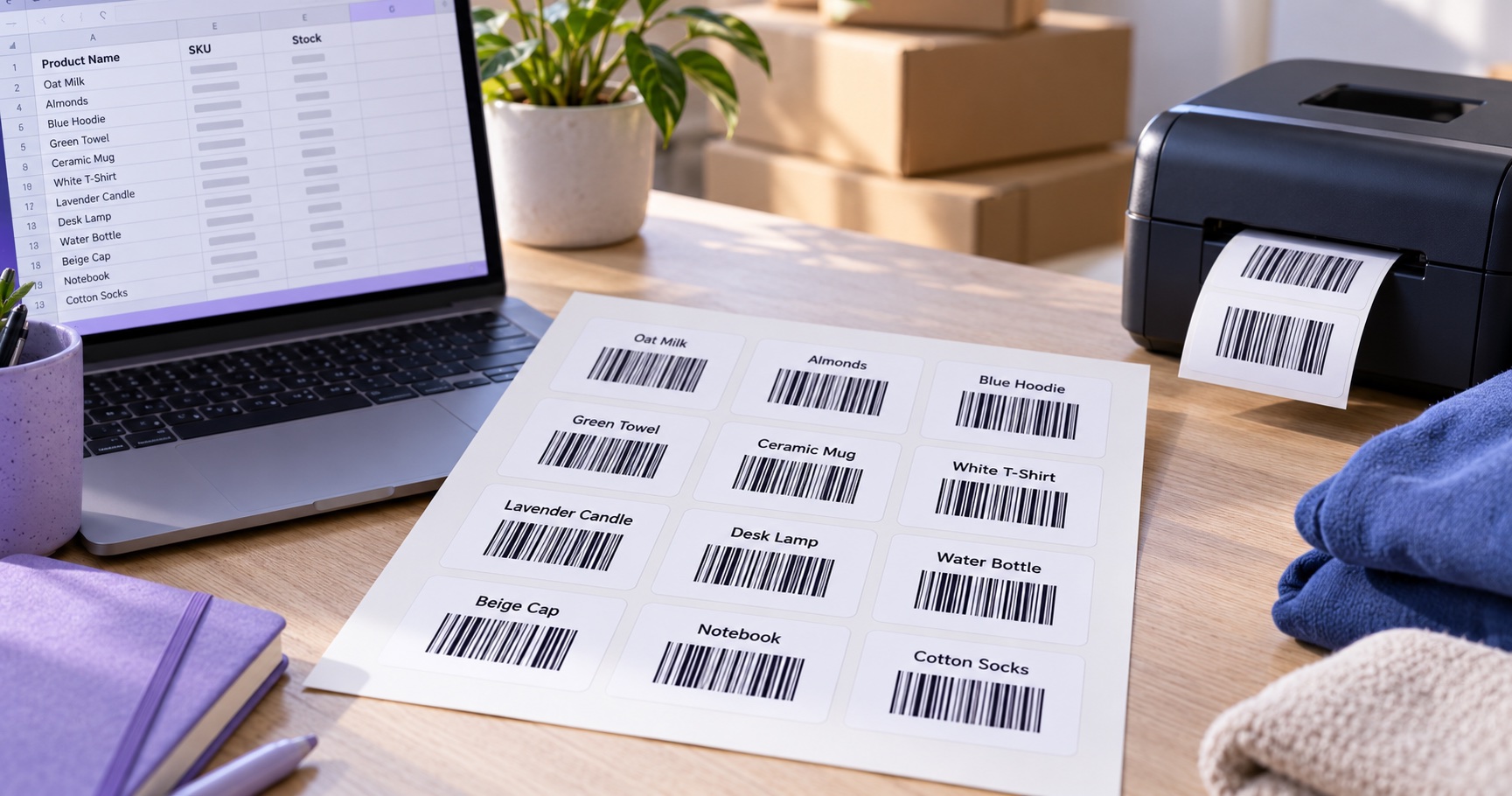
A barcode label with a product name combines a scannable code and readable text from the same spreadsheet row. A retail label might pair "Organic Oat Milk 1L" with a UPC-A; a warehouse label might pair "Blue Hoodie - M" with a Code 128 SKU. The barcode generator encodes the value, while your label layout places the separate product name beside it.
Table of Contents
- What This Kind of Label Actually Is
- Why the Name and Barcode Must Come From the Same Row
- Set Up Your Spreadsheet First
- Method 1: Word Mail Merge With Built-In Barcode Fields
- Method 2: Mail Merge With Barcode Images
- Method 3: Label Printer Software
- Which Method Should You Use?
- Will a Barcode and Product Name Fit on One Label?
- Common Mistakes That Waste Label Sheets
- How to Test Before the Full Print Run
- Frequently Asked Questions
- Final Thoughts
What This Kind of Label Actually Is
Each finished label represents one product record. The printed name helps a person identify it; the barcode carries the exact value your point-of-sale or inventory system expects. Do not put the product name into the barcode field unless that is genuinely the identifier your system scans.
Why the Name and Barcode Must Come From the Same Row
Manually placing names over preprinted codes is easy to misalign. A single skipped row can make every later name describe the wrong item. Merge both fields from one spreadsheet record, preview the whole sheet, then scan samples against that source row.
Set Up Your Spreadsheet First
Put headers in row 1, avoid merged cells and blank rows, and keep one product per row. Format barcode values as text before entering them so a leading zero survives.
| Column | Example | Why it matters |
|---|---|---|
| Barcode | 036000291452 | The value to encode; store as text. |
| ProductName | Organic Oat Milk 1L | Readable name printed on the same label. |
| Variant | 1L | Optional size or color distinction. |
| Price | $3.49 | Optional; changes require reprinting. |
| ImageFile | barcode-UPCA-036000291452.png | Exact image file name for Method 2. |
Check for duplicates and required lengths: UPC-A has 12 digits; EAN-13 has 13. A check digit is the last digit calculated from the preceding digits. Your spreadsheet still needs the correct assigned product identifier; generating bars does not register a number.
Method 1: Word Mail Merge With Built-In Barcode Fields
For a Windows Word label merge, Microsoft documents the MERGEBARCODE field for UPC-A, EAN-13, Code 128, and other types. The field draws the symbol from a merge column. Check your Word version and the barcode type before printing a run.
- Save the cleaned spreadsheet.
- In Word, choose Mailings, Start Mail Merge, Labels, then the label stock you bought.
- Choose Select Recipients and select the spreadsheet.
- Insert the
ProductNamemerge field in the first label. - Press Ctrl+F9 to create real field braces and enter
MERGEBARCODE Barcode UPCA \tinside them. HereBarcodeis the column name and\tshows the value under the bars. - Update Labels, preview every record, and test-print on plain paper before using label stock.
For internal SKUs, choose a type such as CODE128 instead of UPCA. Word's layout and data checks are limited, so verify the printed code with your actual scanner. See Microsoft's MergeBarcode reference for field syntax and supported formats.
Method 2: Mail Merge With Barcode Images
This method makes each barcode image first, then merges the corresponding image and name onto the label. It is useful when you want to inspect the codes before laying out sheets, or your merge software lacks the needed barcode type.
- Copy only the barcode-value column. Paste one value per line into the Bulk Barcode Generator and choose the correct format.
- Review validation messages and preview the codes. Bulk downloading needs an account and depends on your plan allowance.
- Download PNG images or a ZIP of PNGs. Put them in one folder and record each exact output filename in the
ImageFilecolumn; do not assume it matches the raw value. - In your Word label merge, insert the product name as a normal merge field. Add an
INCLUDEPICTUREfield whose file path uses the merged image filename. - Refresh image fields after merging, preview every label, print one sheet, and scan codes from different positions.
Generate images large enough for the final label. Reducing a large PNG is usually safe; enlarging a small one softens bar edges. The current New Age Apps barcode download is PNG, and its PDF export embeds the PNG rather than producing vector art. Ask a print specialist for compliant vector artwork if your packaging workflow requires it.
Method 3: Label Printer Software
Thermal label design software commonly connects to a spreadsheet or CSV. Bind one field to the barcode object and a second to the text box, then print each record as one label. This is often the best fit for daily roll-label printing. Check the software's supported symbologies, check-digit behavior, printer resolution, and import rules before production.
Which Method Should You Use?
| Method | Best fit | Data checks | Typical media |
|---|---|---|---|
| Word barcode fields | Occasional label sheets on supported Word desktop versions | Verify yourself before print | Sheet labels |
| Barcode images plus merge | Previewing every symbol or using another barcode type | Validate during generation and scan proofs | Sheet labels |
| Printer software | Repeated, higher-volume runs | Depends on the software | Rolls or sheets |
Will a Barcode and Product Name Fit on One Label?
Measure the barcode at the size your trading partner requires, including its quiet zones, human-readable digits, and the name line. GS1's EAN/UPC rules limit how far retail symbols can be reduced; cropping side margins or shortening bars to force a fit can prevent scanning. A common Avery 5160 sheet has 1 × 2-5/8 inch labels. Its width may fit a UPC, but its 1-inch height can be cramped once the bars, digits, and product name are included. A taller label is often easier to use for retail symbols; internal Code 128 SKU labels may be more flexible. Test the exact printed layout before buying a large batch.
Common Mistakes That Waste Label Sheets
- Lost leading zeros: store the barcode column as Text and re-enter values that Excel already changed.
- Printer scaling: use Actual Size or 100%, then check alignment against the physical sheet.
- Names that wrap: shorten them in the data, not by squeezing the barcode.
- Artwork in quiet zones: keep text and borders away from the bars' clear side margins.
- Wrong symbology: a Code 128 version of a UPC value may scan but still be rejected at a retail till.
- Filename mismatch: confirm the image in each merged label belongs to that row.
How to Test Before the Full Print Run
- Print one page on plain paper at 100% size.
- Hold it against the label sheet to check alignment.
- Scan at least five labels, including the corners, with the scanner used in your workflow.
- Compare every decoded value with the printed name and the source spreadsheet row.
- Only then print the remaining sheets.
For the data-preparation stage, see how to generate barcodes in bulk. If your print fails to scan, revisit contrast, size, and quiet zones before reprinting.
Frequently Asked Questions
Can I print barcode labels from Excel without Word?
Excel can hold your product data, but it does not automatically merge one row into each position on a label sheet. Use Word mail merge, compatible label software, or place a few generated barcode images manually. Always test the printed result.
Does the MergeBarcode field work in Word for Mac?
Microsoft's barcode label instructions focus on Word desktop for Windows. Check field support in your Mac version before committing to a workflow; barcode images or Mac-compatible label software are practical alternatives.
Why do my barcodes lose their leading zeros in mail merge?
Excel stored the barcode column as numbers and removed the leading zeros before Word read it. Format the column as Text, restore the original values, and confirm the full digit count before merging.
What size label do I need for a UPC barcode and a product name?
Use a label tall enough for the full barcode, human-readable digits, product name, and clear margins. A 1-inch-tall address label is often cramped for retail UPC or EAN artwork; a taller label is easier to validate. Confirm the exact layout with your printer and GS1 specifications.
Can I add a price under the product name?
Yes. Add a Price column and merge it as another text field. Keep it out of the barcode's quiet zones, and remember that a price change will require reprinting those labels.
Is it better to use a barcode font or barcode images?
Images are often simpler because the generator handles the symbol and checksum rules. Barcode fonts can require special start, stop, and check characters; a plausible-looking result may still fail to scan.
How do I print on a partly used label sheet?
Use a start-position option in your label software or a test copy of the merge with blank positions before the first usable label. Check the label manufacturer's guidance before feeding a partly used sheet through a laser printer, and test alignment on plain paper first.
Should every label show the barcode number as text too?
Retail UPC and EAN symbols normally show the digits for manual entry when scanning fails. For an internal Code 128 label, visible text is optional but useful. The New Age Apps generator has a Show Value setting.
Final Thoughts
The reliable pattern is one clean spreadsheet row per product, merged into one complete label. Choose the method that fits your printer, leave enough room for the real barcode dimensions, and scan a proof sheet before the full run. Start by preparing the values in the Bulk Barcode Generator.
Sources and Specifications
For field syntax, consult Microsoft Support. For sheet dimensions, see Avery's 5160 guide. For retail symbol dimensions and print requirements, use your applicable GS1 barcode specifications.
Enjoyed this post?
Share it with your network