Barcode Basics
How to Create Barcodes in Excel: Fonts vs Formulas vs an Online Generator
- Excel
- barcode fonts
- check digit
- Code 39
- spreadsheets
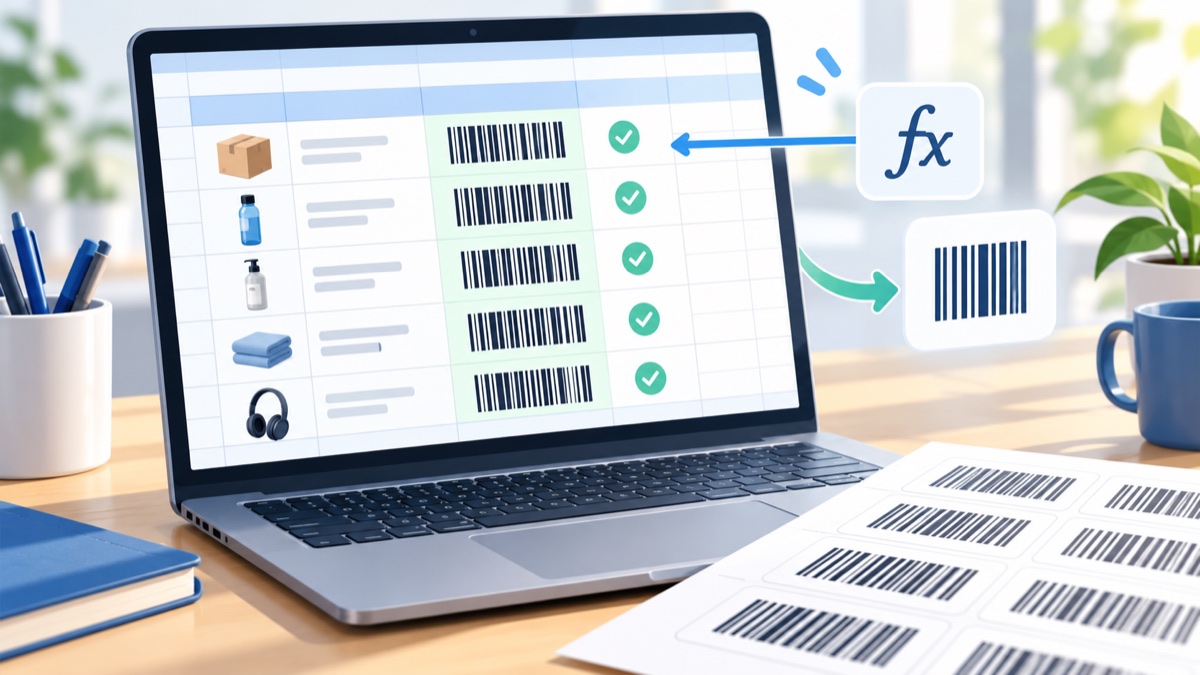
Excel is useful for organizing barcode values, checking them, and preparing a print list. It does not have a built-in command that turns arbitrary cell text into a barcode. Most people use formulas to clean the data, then a font for simple Code 39 or an online generator for ready-to-use barcode images.
Table of Contents
- Can Excel Make Barcodes?
- The Three Methods at a Glance
- Method 1: Barcode Fonts
- Method 2: Formulas for Data Preparation
- Method 3: An Online Generator
- Which Method Should You Use?
- Common Mistakes
- Frequently Asked Questions
- Final Thoughts
Can Excel Make Barcodes?
Not by itself. A barcode is an encoded symbol, and each format has rules for translating data into bars. A font changes the appearance of characters, but many formats also need start and stop patterns, check characters, or other encoding logic. Formulas can validate data and calculate a UPC or EAN check digit, but formulas alone do not draw the symbol.
Choose the format your scanner, retailer, or trading partner requires. Code 39 and Code 128 are common for internal labels; UPC-A and EAN-13 are retail formats. A number generated in a spreadsheet does not become a GS1-assigned product identifier just because it has a valid check digit.
The Three Methods at a Glance
| Method | What Excel does | Useful for | Main limitation |
|---|---|---|---|
| Barcode font | Displays encoded cell text as bars | Simple Code 39 kept in a controlled workbook | Font installation and correct encoding are required |
| Formulas | Prepares, checks, and calculates data | Leading zeroes, lengths, duplicates, UPC/EAN check digits | Formulas do not draw bars |
| Online generator | Receives copied values and returns barcode images | UPC, EAN, Code 128, or batches that must travel between systems | Copy the data and review the generator's supported formats and limits |
Method 1: Barcode Fonts
A barcode font maps characters to bar shapes. For simple Code 39 values, Libre Barcode 39 is a free option from Google Fonts. Install it on the computer that creates and prints the workbook, then restart Excel if the font is not listed.
- Put one identifier in each row. Code 39 commonly supports uppercase letters, digits, spaces, and a limited set of symbols; confirm the font's character support.
- In a helper column, wrap the value with asterisks, for example
="*"&UPPER(A2)&"*". The asterisks are the Code 39 start and stop characters. - Apply the barcode font to the helper column and adjust the row height and font size so the bars are tall enough for the intended scan distance.
- Print at actual size and scan several labels with the intended scanner.
The asterisk method is specific to Code 39. A plain-text value shown in a Code 128, UPC-A, or EAN-13 font is not necessarily encoded correctly. Those formats need a compatible encoder to create the required symbol patterns and check character. A font-only workflow is also fragile when another person opens the workbook without the same font installed.
Method 2: Formulas for Data Preparation
Set the barcode column to Text before pasting or typing values, especially when identifiers can start with zero. Excel can otherwise remove leading zeros or display long numbers in scientific notation. If a zero has already been dropped, add it back only when you know the correct identifier length and can confirm it against the source system.
Formulas can flag common problems before you generate the bars. If A2 holds a UPC-A value as text, =LEN(A2)=12 checks for twelve digits. Use =COUNTIF($A$2:$A$5000,A2)>1 to flag repeated values. These checks do not validate that the number belongs to a particular product.
Calculate a UPC-A check digit
For the first 11 UPC-A digits stored as text in A2, this formula appends the twelfth digit:
=A2&MOD(10-MOD(SUMPRODUCT(--MID(A2,{1,3,5,7,9,11},1))*3+SUMPRODUCT(--MID(A2,{2,4,6,8,10},1)),10),10)For example, 03600029145 produces 036000291452. For the first 12 EAN-13 digits stored as text in A2, use:
=A2&MOD(10-MOD(SUMPRODUCT(--MID(A2,{1,3,5,7,9,11},1))+SUMPRODUCT(--MID(A2,{2,4,6,8,10,12},1))*3,10),10)400638133393 produces 4006381333931. Check each formula against known examples, keep the input as text, and use your system's assigned identifier rather than inventing a number.
A valid check digit detects many typing errors; it does not prove that a GTIN has been assigned to your business. For printing labels that combine product names and barcodes, see our spreadsheet label guide.
Method 3: An Online Generator
A barcode generator encodes the value and creates an image. This avoids installing fonts and manually building start, stop, and check patterns. For a batch, clean the list in Excel first, copy only the values, and paste them into the Bulk Barcode Generator, one value per line. Select the required format, review validation messages, and download the resulting PNG files. Batch downloads require sign-in and depend on plan limits.
The current tool accepts pasted values rather than uploading an Excel workbook. If a layout needs the barcode inside a spreadsheet, insert the downloaded image, or use Excel's IMAGE function with a hosted HTTPS image URL in a supported version. See Microsoft's IMAGE function documentation for the supported versions and syntax.
For large print jobs, verify the output dimensions in the final layout. A PDF that contains a PNG remains raster artwork. If your printer requires vector artwork, use an export workflow that explicitly supplies a vector file. See the bulk barcode guide for preparing and downloading a list.
Which Method Should You Use?
- Small internal Code 39 list that stays in one workbook: a barcode font can be convenient, provided every printer has the font and the output scans.
- UPC-A or EAN-13: use formulas to check lengths and check digits, then use an encoder or barcode generator to draw the symbol.
- Code 128 shipping or inventory labels: use a proper encoder rather than formatting plain cell text as a font.
- Files sent to other people or a print shop: use barcode images or artwork that meets the print shop's required format.
- Many values: validate the list in Excel, then paste the values into a bulk generator and scan a proof before the full run.
Whatever the drawing method, start with correct data. A sharp image of the wrong identifier is still a failed label.
Common Mistakes
- Excel removes a leading zero: set the column to Text before importing and compare the finished value with the source.
- Plain text is formatted as Code 128: font styling does not supply the full encoding.
- Code 39 asterisks are missing: add them around the value when the font workflow requires them.
- A check digit is treated as ownership: arithmetic validity does not assign a retail identifier.
- A workbook depends on an unavailable font: another computer may show text instead of bars.
- The print is scaled to fit: scaling can make bars too narrow. Print at intended dimensions and verify on the actual device.
- No proof is scanned: test codes and compare decoded values against the spreadsheet before printing the rest.
Frequently Asked Questions
Does Excel have a built-in barcode generator?
No. Excel can prepare, validate, and display barcode data, but a font encoder or barcode generator must create the bars. A formula alone does not draw a compliant symbol.
Can I create a Code 39 barcode in Excel for free?
Yes. A Code 39 font such as Libre Barcode 39 can work for simple uppercase values when you add the required asterisks around the data. Install the font on every computer that must display the workbook and test a printout.
Can I use a barcode font for Code 128 or UPC?
Not by changing the font on plain text. Code 128 and retail formats need specific encoding, start and stop patterns, and check information. Use a proper encoder or generate barcode images.
How do I keep Excel from removing leading zeroes?
Format the barcode column as Text before entering or importing values. If Excel has already removed zeroes, restore them only when the required identifier length is known, then verify the result against the original source.
Can Excel formulas calculate a UPC or EAN check digit?
Yes. A formula can calculate the final check digit from the preceding digits, but it cannot confirm that the number was assigned to your product. Keep identifiers as text and verify both length and ownership.
Can I put generated barcode pictures in Excel?
Yes. Insert saved image files, or use Excel's IMAGE function with an HTTPS image URL in supported Excel versions. The function does not generate the barcode itself, and a protected or unavailable URL will not load.
Final Thoughts
Use Excel to organize and check identifiers. Use a Code 39 font only when its constraints fit your workflow; use an encoder or image generator for formats that need more encoding logic or must be shared reliably. Preserve leading zeros, verify the assigned values, and scan a printed proof. To start with a list, use the Bulk Barcode Generator.
References
For the Excel image function, see Microsoft Support. For a Code 39 font, see Google Fonts' Libre Barcode 39.
Enjoyed this post?
Share it with your network